
CheqOne updates
How to Align Check Printer Settings Correctly
Learn how to align check printer settings with a reliable test process, precise field adjustments, and controls that protect every issued checks accurately.
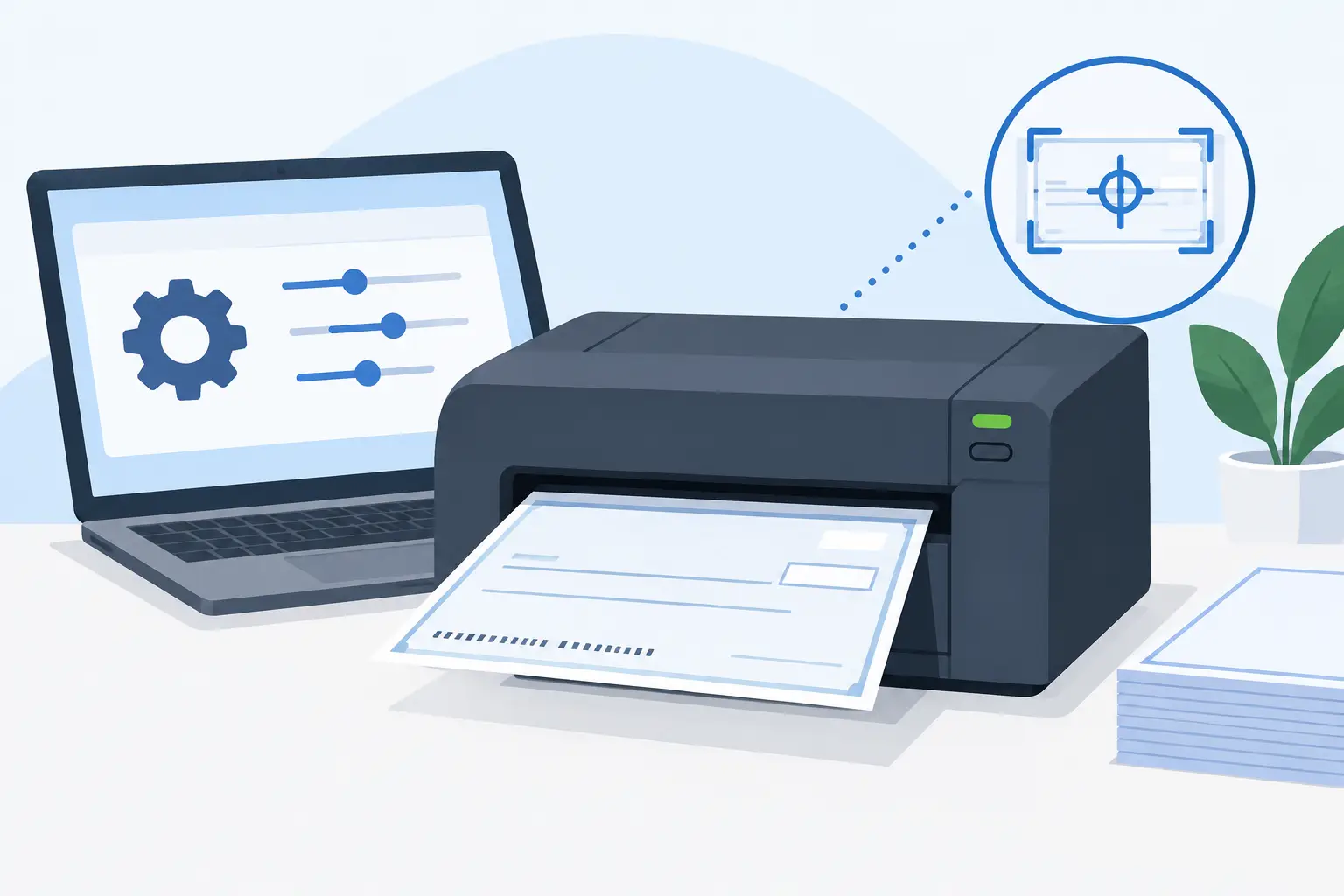
A check can be financially correct and still fail at the printer. If the date lands in the wrong box, the amount overlaps a preprinted line, or the signature area shifts unexpectedly, a valid payment instrument becomes a manual exception. Knowing how to align check printer settings is therefore not just a printer task. It is part of controlled check administration.
The most dependable approach is to treat alignment as a repeatable setup process: confirm the physical paper path, select the right printer settings, print a controlled test, measure the direction of the error, and adjust only the affected fields. Once it is correct, record the setup and protect it from casual changes.
Start with the physical check and printer path
Alignment problems often begin before software sends anything to the printer. Check that the check leaf is loaded in the same orientation expected by the layout. The top edge, face-up or face-down position, and feed direction vary by printer. A reversed feed can produce an output that looks dramatically wrong even when every coordinate in the layout is correct.
Use the same tray, feed slot, and paper guide position that will be used for live checks. Side guides should touch the paper lightly. If they are too loose, the check can drift as it enters the printer. If they are too tight, the printer may skew or jam it. For thicker check stock, use the printer’s manual or rear feed if the manufacturer recommends it.
Also inspect the check itself. Preprinted forms can differ between checkbooks, bank branches, and print batches. A layout aligned to one check design may not align to another if the date box, payee line, or MICR area has moved even slightly. Do not assume that two checkbooks from the same bank use identical artwork.
How to align check printer output with a test sheet
Never use a blank live check as the first test. Print the layout on plain paper, then place that sheet over a real check and hold both up to a light source. This simple overlay test makes horizontal and vertical errors easy to see without wasting a numbered leaf.
Use a test payment with clearly recognizable values. A short payee name, a whole-number amount, and a visible reference make it easier to judge each field. Avoid a long payee name or a large amount during the first test because you need to identify position errors before testing how the layout handles field length.
Look for patterns rather than adjusting fields one by one immediately. If the date, payee, numeric amount, and amount in words are all 2 mm too low, the issue is likely a global vertical offset. Move the entire print area up by the measured amount. If only the numeric amount is wrong, adjust that field alone.
A useful rule is simple: correct shared errors globally and isolated errors locally. This prevents a series of small edits that leave the layout difficult to maintain.
Measure the error before changing coordinates
Estimate the distance between the printed text and its intended position. A clear ruler with millimeter markings is sufficient for most office setups. Record whether the print needs to move left, right, up, or down, then make one controlled adjustment.
For example, if the payee name is 1 mm too far right, reduce its horizontal position by 1 mm. If it is 1 mm too low, reduce its vertical position by 1 mm. The exact direction can vary by layout designer, so confirm whether the tool measures from the top-left corner and whether positive values move an item right or down.
Make small changes, print again, and compare. Large corrections create uncertainty because they can overshoot the target and hide the original cause. For financial documents, patience during setup is cheaper than reissuing checks later.
Confirm printer settings before editing the layout
A correct layout can shift when a printer driver applies scaling, a different paper size, or a new tray setting. Before editing positions, confirm that the print job is set to actual size or 100 percent. Disable options such as Fit to Page, Scale to Fit, Shrink Oversized Pages, or Borderless Expansion. These features are useful for ordinary documents but unsuitable for preprinted checks.
Select the exact check size configured in the layout. If the driver does not offer the required size, create a custom paper form that matches the physical check dimensions. Letter, A4, and legal settings are not substitutes for a check leaf simply because the check fits inside the page.
Check the printer’s orientation as well. The layout may be designed in portrait while the printer driver silently applies landscape, or vice versa. A driver update can also reset defaults. Whenever alignment suddenly changes after a printer replacement, Windows update, or driver reinstall, inspect these settings first.
Laser, inkjet, dot-matrix, and dedicated check printers can all produce reliable output, but their feed behavior differs. A laser printer may have a consistent leading-edge margin. A dot-matrix printer may need a specific tractor-feed setup. An inkjet printer may pull stock slightly differently depending on which tray is used. The best alignment is always tied to the actual printer, driver, tray, and check format in use.
Set up a controlled alignment record
Once a layout prints correctly, save more than the design itself. Document the conditions that made it correct so another authorized user can reproduce the result.
Your alignment record should identify:
- The company, bank account, and checkbook series
- The bank check format and physical check dimensions
- The printer model, Windows printer name, driver version, and feed tray
- The layout name, test date, and person who approved the result
- Any global offsets or printer-specific notes
This record matters most in multi-company environments. A layout suitable for one bank account should not be casually reused for another account with a different form. Likewise, a finance team should avoid letting multiple users make untracked position changes. Alignment is a financial control point, not a formatting preference.
Test real-world field lengths before approving the layout
A layout can pass a simple test and still fail when it meets a long supplier name or an amount in words. Before approving it, test the cases your team actually encounters: a long beneficiary name, a large amount, a post-dated check, and bilingual wording where applicable.
For checks used, Arabic amount wording needs the same care as English text. It should be generated accurately and positioned so it remains readable without crossing preprinted boundaries. The available space, font size, and line-wrap behavior must be tested against realistic high-value amounts, not only short examples.
If a payee field is too narrow, do not solve the problem by shrinking every name to an unreadable size. Depending on the bank format, a better option may be to set a reasonable maximum font reduction, allow controlled wrapping, or use an approved abbreviated legal name. The right choice depends on the check design and the organization’s payment policy.
Keep printing separate from approval where possible
Correct alignment reduces waste, but it does not replace payment controls. The person adjusting a layout should not automatically have permission to issue or approve checks. Similarly, a test print should be clearly marked as a test and should not consume a live check number unless your process explicitly requires it.
A dedicated printing workflow also protects against accidental output from an unapproved computer. CheqOne’s Windows Print Helper is designed for this practical requirement: the browser-based finance workspace can keep check data centralized while printing occurs through an approved Windows printer connection. The goal is simple - consistent output without giving up traceability.
After printing a live check, inspect the first few items in a batch before continuing. Confirm the date, payee, numbers, words, account details, and check number against the source record. For post-dated checks, verify the date especially carefully. A perfectly aligned check with the wrong date is still an operational risk.
When alignment keeps changing
If the same layout moves unpredictably between prints, stop adjusting coordinates. Inconsistent movement usually points to a feed or driver issue rather than a layout issue. Check for worn rollers, mixed paper sizes in the tray, changing paper guides, scaling settings, or a printer queue that is using a different driver profile.
If the output is consistently shifted by the same amount, calibration can solve it. If each print shifts differently, service the printer or change the feed method before releasing checks. A stable printer path is the foundation of precise printing.
A well-aligned check layout should become boring: load the right checkbook, select the approved printer, print, review, and update the payment status. That quiet consistency gives finance teams more room to focus on the payment decisions behind every check.